Welcome! This guide walks you through setting up your first course with a working chatbot. Follow these steps in order and you will be up and running in about 15 minutes.
1 Create Your Account
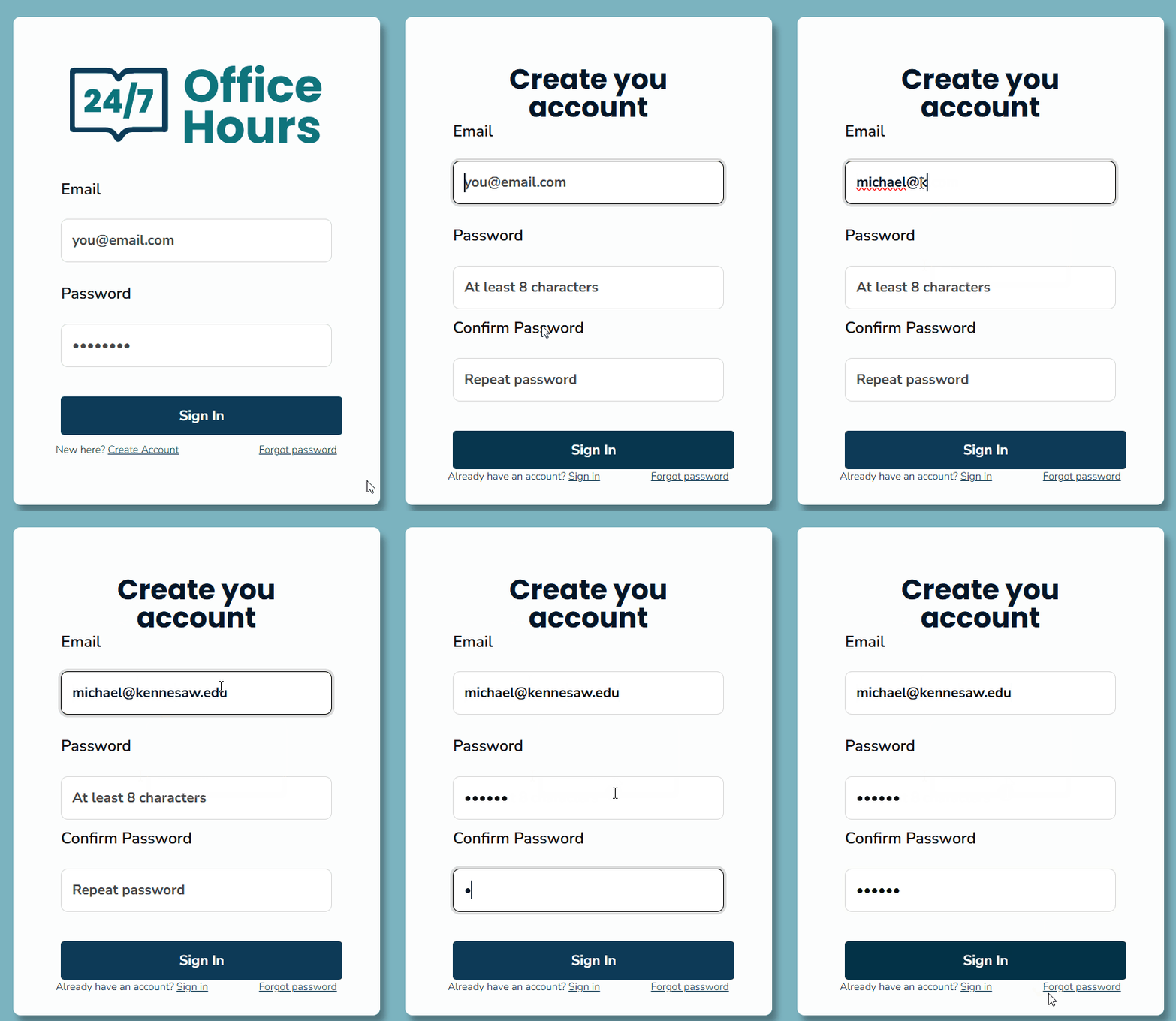
24/7 Office Hours requires a verified university email. Signup is two steps.
- Go to the main website and click Sign Up.
- Start typing your university name and pick it from the list. Don't see your school? Click "Don't see your institution?" to email support and request that we add it.
- Enter the part of your email before the
@ — the domain is filled in automatically based on the university you picked.
- Click Send me a link.
- Check your inbox for a verification email from
noreply@247officehours.com. If you don't see it after a minute, check your spam or junk folder.
- Click the link in the email. It is single-use and expires in 30 minutes.
- Fill in your department and create a password (at least 8 characters).
- Click Create account.
You are now logged in and see your Dashboard.
Note on account tiers
- Kennesaw State University owners (
kennesaw.edu) have unlimited usage.
- All other verified university owners are placed on the Free tier with the following caps per account:
- 1 class
- 50 students per class
- 20 non-text knowledge-base documents per class (PDFs, images, Word, etc.)
- Unlimited
.txt and .md files
Contact support@247officehours.com to upgrade.
2 Create a Course
- On your Dashboard, click "Create New Course"
- Enter your course name (example: "Introduction to Biology - Fall 2025")
- Click "Create"
You are now on your course page. You will see tabs across the top.
3 Create a Knowledge Base
The knowledge base stores the materials your chatbot will use to answer student questions.
- Click the "Knowledge Base" tab
- Click "Create New Knowledge Base"
- Enter a name (example: "Course Materials")
- Click "Create"
Your knowledge base is now ready for content.
4 Add Your Materials
Now add your course materials to the knowledge base.
Option A - Upload Files
- Click on the knowledge base you just created
- Click "Upload Documents"
- Select files from your computer (PDF, TXT, or other text files)
- Wait for the upload and processing to complete
Option B - Paste Text Directly
- Click on the knowledge base
- Click "Add New Text File"
- Enter a descriptive name
- Paste or type your content
- Click "Save"
Tip: Use descriptive names for your documents. Students will see these names when the chatbot references them.
Add as many documents as you need. You can always add more later.
5 Create a Chatbot
Now create a chatbot that uses your knowledge base.
- Click the "Chatbots" tab
- Click "Create New Chatbot"
- Enter a name students will see (example: "Course Assistant")
- Write a description explaining what the chatbot can help with
- Select the knowledge base you created in Step 3
- Click "Create"
Your chatbot is created but not yet visible to students.
6 Test Your Chatbot
Before sharing with students, make sure your chatbot works well.
- Click the "Test Chatbots" tab
- Select your chatbot from the dropdown
- Type a question about your course materials
- Press Enter and review the response
- Try several different questions
If the responses are not what you expected:
- Check that your materials were uploaded correctly
- Add more content to your knowledge base
- Make sure you are asking about topics in your materials
7 Publish Your Chatbot
Once you are satisfied with testing, make the chatbot available to students.
- Click the "Chatbots" tab
- Find your chatbot in the list
- Click "Publish"
The chatbot is now visible to students.
8 Add Students
Add students so they can access your course.
Adding Students One at a Time
- Click the "Students" tab
- Click "Add Student"
- Enter the student's email
- Enter a username for the student
- Click "Add"
Adding Many Students at Once
- Click the "Students" tab
- Click "Bulk Add Students"
- Paste a list of student emails (one per line)
- Click "Add Students"
9 Share the Course Link
Students access your course through a special link.
- At the top of any course page, find "Copy Link"
- Click it to copy the student access link
- Share this link with your students via:
- Email
- Your learning management system
- Course syllabus
When students click the link, they will log in with the credentials you created for them and can start chatting with your chatbot.
You Are Done!
Your course is now set up with:
- A knowledge base containing your materials
- A chatbot that can answer student questions
- Students who can access and use the chatbot
What To Do Next
- Add more materials to your knowledge base as the course progresses
- Create additional chatbots for specific topics or units
- Create an Anonymous Chatbot for public access without login (great for course FAQs or prospective students)
- Create Structured Learning chatbots for guided, three-stage learning sessions (Preparing, Learning, Reflecting) with rubric-based evaluation
- Create AIAS chatbots for assignments where you want structured AI use with process evidence, including tutor assignments where students learn by teaching the AI
- Configure Course Settings (gear icon on dashboard) to control student permissions like chat deletion and PDF export
- Check the "Insights" tab to see how students are using the chatbot
- Review "Student Prompts" to see what questions students are asking
Quick Reference - Where to Find Things
| Chatbots tab |
Overview of all chatbots grouped by type (Standard, Guided, Anonymous, AIAS, Structured Learning) |
| Guided Chatbots tab |
Create step-by-step tutorials and walkthroughs |
| Anonymous Chatbots tab |
Create public chatbots accessible without login |
| AIAS Chatbots tab |
Create AI Assessment Scale chatbots (5 levels with process evidence, plus tutor assignments) |
| SL Dashboard |
View analytics for Structured Learning sessions (accessed per-chatbot) |
| Knowledge Base tab |
Add and organize your course materials |
| Test Chatbots tab |
Try out your chatbots before publishing |
| Students tab |
Add and manage student access |
| Insights tab |
See AI analysis of student learning |
| Engagement tab |
View student activity data |
| Student Prompts tab |
See all questions students have asked |
| Instructors tab |
Add teaching assistants to help manage |
Need More Help?
