This guide explains how to use all features of the 24/7 Office Hours platform. The platform allows course owners to create AI-powered chatbots that help students learn course material.
Quick Start
For Course Owners
- Go to the main site and click Sign Up
- Pick your university from the typeahead, enter the part of your email before the
@, and click Send me a link
- Open the verification email from
noreply@247officehours.com (check spam/junk if you don't see it) and click the link
- Enter your department and create a password
- Log in and click Create New Course
- Add your course materials to a Knowledge Base
- Create a Chatbot and link it to your Knowledge Base
- Share the course link with your students
Note: Kennesaw State University owners have unlimited usage. All other universities are on the Free tier (1 class, 50 students, 20 non-text documents per class; unlimited .txt and .md). See Free Tier Limits for details.
For Instructors
- You will receive login credentials from the course owner
- Go to the main site and click "Log In"
- Enter your email and password
- You will see all courses you have been added to
- Click on a course to access features the owner has enabled for you
For Students
- You will receive a course link from your instructor
- Click the link and enter your student credentials
- Select a chatbot to start chatting
- Ask questions about your course material
Owners
Creating an Account / Logging In
Creating an Account
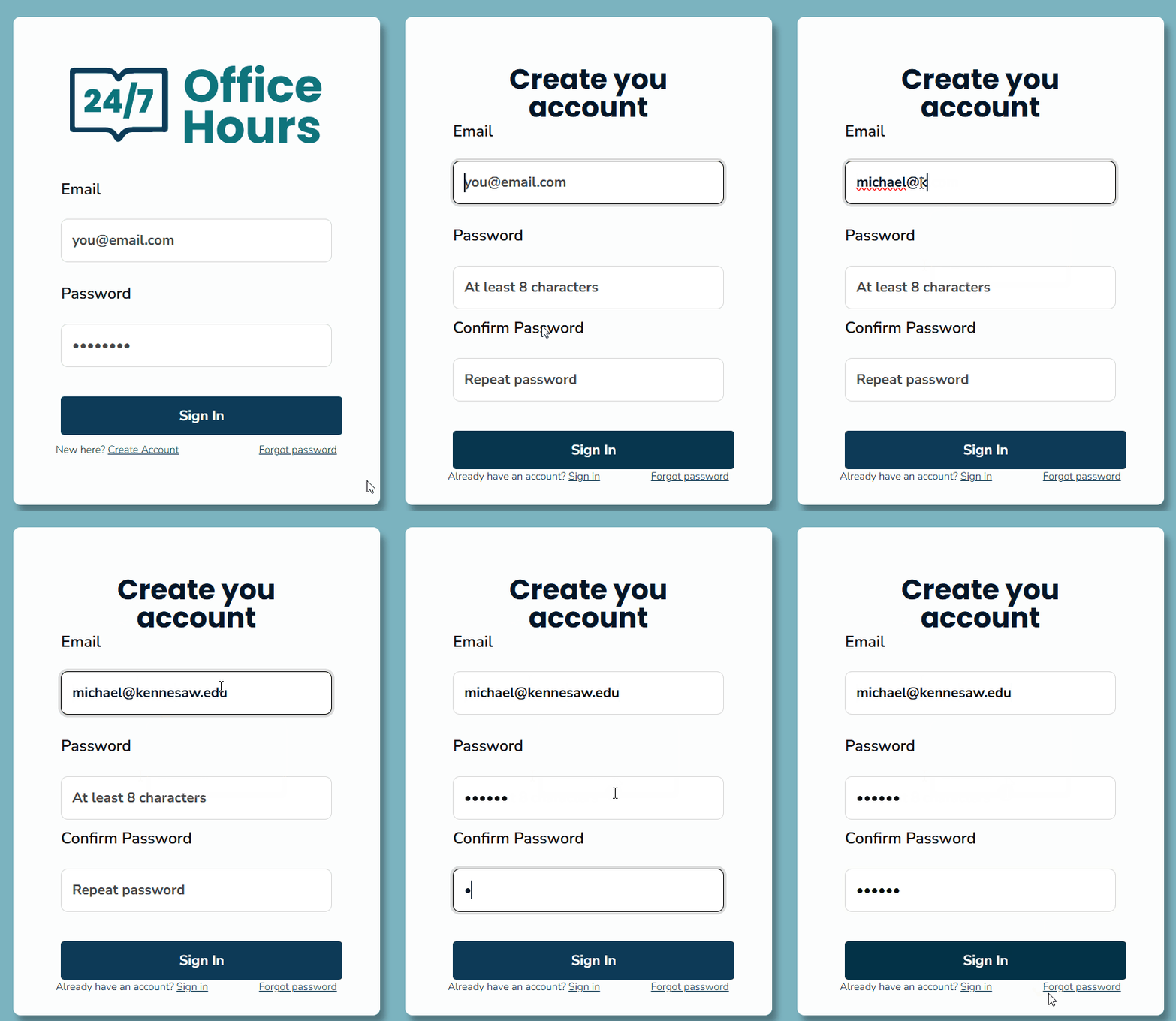
24/7 Office Hours requires a verified university email. The signup is two steps — first you confirm ownership of the email, then you finish your profile.
- Go to the main website and click Sign Up.
- Start typing your university name in the typeahead and pick it from the list. If your school is missing, click "Don't see your institution?" — this opens an email to support so we can add it.
- Enter the part of your email before the
@. The domain is locked to the university you picked.
- Click Send me a link.
- Check your inbox for a verification email from
noreply@247officehours.com. If you don't see it after a minute, check your spam or junk folder. The link is single-use and expires in 30 minutes.
- Click the link in the email. You will be taken to a short form.
- Enter your department (free text) and pick a password of at least 8 characters.
- Click Create account.
- You will be logged in and taken to your dashboard.
If you already have an account, the signup form will detect your email after you click Send me a link and offer a button to take you straight to the login page instead.
Didn't receive the link?
Click the "Request manual registration" link on the "Check your email" page. This opens a pre-filled email to support@247officehours.com. A support agent will reply with a temporary login password that you can use once and then change.
Free Tier Limits
After verifying your email, your account is placed on one of two tiers based on your university domain:
- Unrestricted
- Kennesaw State University owners (
kennesaw.edu). No caps on classes, students, or knowledge-base documents.
- Free
- Every other verified university. The following caps apply per account:
- 1 class
- 50 students per class
- 20 non-text knowledge-base documents per class (PDFs, images, Word documents, slides, etc.)
- Unlimited
.txt and .md files
If you try to exceed a limit, the platform will reject the action with a clear message and ask you to contact support@247officehours.com to upgrade. The 20-document cap is enforced both before upload (a warning dialog appears as soon as your file selection would exceed the cap) and on the server (so it cannot be bypassed by editing the page). Renaming a PDF to a .txt extension is also blocked on the Free tier — the platform checks the file content, not just the filename.
Changing universities or emails
Once an account is created, the email and university are locked. If you need a different email or your university changes, contact support@247officehours.com and we will help.
Logging In
- Go to the main website
- Click "Log In"
- Enter your email and password
- Click "Sign In"
Your Dashboard
After logging in, you will see your Dashboard. This shows all your courses. From here you can:
- View existing courses
- Create new courses
- Access course settings (click the gear icon on any course card)
Creating a Course
- From your Dashboard, click "Create New Course"
- Enter a name for your course
- Click "Create"
- You will be taken to the course page
Course Navigation
Each course has tabs at the top of the page:
- Chatbots - Overview of all chatbots grouped by type (Standard, Guided, Anonymous, AIAS)
- Guided Chatbots - Create step-by-step guided conversations
- AIAS Chatbots - Create AI Assessment Scale chatbots with level-specific constraints
- Knowledge Base - Upload course materials
- Practice Tests - Create adaptive self-assessment quizzes
- Test Chatbots - Try out your chatbots
- Students - Add and manage students
- Insights - View learning analytics
- Engagement - See student activity
- Student Prompts - View questions students have asked
- Instructors - Add teaching assistants/other instructors
Course Settings
Course Settings let you control student permissions across all chatbots in a course. Access Course Settings by clicking the gear icon on the course card in your Dashboard.
Student Permissions
These settings control what students can do in the chat interface:
- Allow students to delete chats - When ON (default), students can delete their chat conversations. When OFF, the delete button is hidden and direct URL access is blocked.
- Allow students to export chats to PDF - When ON (default), students can export conversations to PDF. When OFF, the export button is hidden and direct URL access is blocked.
These are course-wide defaults. Individual chatbots can override these settings (see "Student Permissions" in chatbot settings).
Per-Chatbot Overrides
Each chatbot (Standard, Guided, or AIAS) has a "Student Permissions" section in its settings page with two dropdowns:
- Chat Delete: Course Default (inherit) / Allow (override to show) / Disallow (override to hide)
- Export to PDF: Course Default (inherit) / Allow (override to show) / Disallow (override to hide)
Owners and instructors always see both buttons regardless of these settings.
Knowledge Base
The Knowledge Base stores your course materials. The AI uses these materials to answer student questions accurately.
Creating a Knowledge Base
- Click the "Knowledge Base" tab
- Click "Create New Knowledge Base"
- Enter a name for this collection of materials
- Click "Create"
Uploading Documents
- Click on the Knowledge Base you want to add files to
- Click "Upload Documents"
- Select files from your computer (PDF, TXT, or other text files)
- Wait for the upload to complete
- The system will process your documents automatically
Adding a New Text File
If you want to paste text content directly instead of uploading a file:
- Click on the Knowledge Base you want to add content to
- Click "Add New Text File"
- Enter a name for this content
- Paste or type your text into the text area
- Click "Save"
- The content will be processed automatically
Adding More Files Later
- Click on an existing Knowledge Base
- Click "Add Files"
- Select additional files to upload
- Wait for processing to complete
Editing Documents
- Click on a Knowledge Base
- Find the document you want to edit
- Click the edit button next to it
- Make your changes
- Click "Save"
Deleting Documents
- Click on a Knowledge Base
- Find the document you want to remove
- Click the delete button
- Confirm the deletion
Exporting Knowledge Bases
You can export knowledge bases to share them between courses or as a backup. Exports use the .247ohkb file format.
Exporting an entire knowledge base:
- Hover over the Knowledge Base folder in the sidebar
- Click the down-arrow export icon that appears
- A
.247ohkb file will download containing all documents
Exporting selected files across multiple knowledge bases:
- Click the "Export" button at the top of the sidebar
- A modal will show all knowledge bases with expandable file lists
- Check the boxes next to the files you want to include
- Use "Select All" to quickly select everything
- Click "Export Selected" to download
Exporting a single file:
- Hover over any file in a Knowledge Base
- Click the down-arrow export icon next to the file
- A
.247ohkb file will download containing just that document
Importing Knowledge Bases
You can import previously exported knowledge bases from .247ohkb or .zip files.
- Click the "Import" button at the top of the sidebar
- Select a
.247ohkb file (or a legacy .zip file)
- Wait for the import to complete
- The knowledge base(s) will appear in your sidebar with all documents
Notes:
- If a knowledge base with the same name already exists, the imported one will be renamed with a "(Copy)" suffix
- Multi-KB exports will create one knowledge base per entry in the file
- All imported documents are automatically processed for AI search
Chatbots
Chatbots are the AI assistants that students interact with. Each chatbot can be connected to one or more Knowledge Bases.
Creating a Chatbot
- Click the "Chatbots" tab
- Click "Create New Chatbot"
- Enter a name for the chatbot
- Write a description (students will see this)
- Select which Knowledge Bases the chatbot should use
- Click "Create"
Editing a Chatbot
- Click the "Chatbots" tab
- Find the chatbot you want to edit
- Click "Edit"
- You can change: Name and description, Which Knowledge Bases it uses, Creativity level (how varied the responses are), Whether it uses advanced reasoning
- Click "Save Changes"
Publishing a Chatbot
New chatbots are hidden from students by default. To make a chatbot visible:
- Click the "Chatbots" tab
- Find the chatbot
- Click "Publish"
- The chatbot is now visible to students
Unpublishing a Chatbot
To hide a chatbot from students:
- Click the "Chatbots" tab
- Find the chatbot
- Click "Unpublish"
- Students can no longer see or use this chatbot
Archiving a Chatbot
To remove a chatbot but keep its history:
- Click the "Chatbots" tab
- Find the chatbot
- Click "Archive"
- The chatbot is hidden but not deleted
- You can restore it later if needed
Restoring an Archived Chatbot
- Click the "Chatbots" tab
- Find the archived chatbot (shown in a different section)
- Click "Restore"
- The chatbot returns to your active list
Structured Learning Chatbots
Structured Learning chatbots guide students through a research-backed, three-stage learning process: Preparing, Learning, and Reflecting. Unlike regular chatbots where students ask open-ended questions, Structured Learning chatbots follow the Learning Process Methodology to build understanding step by step and evaluate student progress against a rubric at the end.
How It Works
When a student opens a Structured Learning chatbot, they go through three stages:
Stage 1 — Preparing
The student sees an onboarding form with the learning topic (set by the instructor) and three open-ended questions: their motivation, prior knowledge, and goals. After submitting, the AI provides a personalized orientation with key vocabulary and an overview of what they will cover.
Stage 2 — Learning
The AI guides the student through interactive learning steps: planning, examining models, critical thinking, knowledge transfer, and problem solving. The AI uses Socratic questioning and scaffolding rather than giving direct answers. An exchange counter tracks progress toward the session limit. If a knowledge base is attached, Protect Solutions is automatically enabled to prevent the AI from revealing answers.
Stage 3 — Reflecting
The student completes a self-assessment (rating their confidence 1-5), then explores a research prompt set by the instructor. When the session ends, the AI evaluates the full conversation against the rubric and records the results. The chat locks so the session is a complete, self-contained learning experience.
Creating a Structured Learning Chatbot
- Click the "Chatbots" tab
- Click "Create New Chatbot"
- Enter a chatbot name
- Check "Structured Learning"
- The configuration panel appears with these settings:
- Learning Topic (required) — The specific topic students will study. This is shown on the student onboarding form as a read-only field so students know exactly what the session covers. Example: "Photosynthesis" or "Linear Algebra".
- Persona — Choose how the AI interacts with students:
- Socratic Mentor — Guides through questions, never gives answers
- Encouraging Coach — Warm and supportive, celebrates progress
- Strict Professor — Rigorous, demands precision
- Collaborative Peer — Learns alongside the student
- Subject Expert — Deep domain knowledge, real-world connections
- Evaluation Rubric Template — Choose a rubric for evaluating student performance at the end:
- Comprehension — Concept understanding, connections, application
- Application — Problem analysis, strategy selection, solution quality
- Critical Thinking — Analysis, evaluation, synthesis
- Problem Solving — Problem identification, approach, reasoning
You can also write a custom rubric in the text area below the dropdown.
- Research Prompt Template — Choose what students explore in the final reflection step:
- Apply to New Scenario — Apply learning to different contexts
- Cross-Discipline Connection — Connect to other subjects
- Real-World Application — Real-world uses and careers
- Deeper Investigation — Questions for further exploration
You can also write a custom research prompt.
- Exchange Limits
- Stage 2 (Learning): How many exchanges before auto-transitioning to reflection (default 15, range 5-50)
- Stage 3 (Reflection): Guideline for reflection depth (default 5, range 3-20)
- Optionally select a knowledge base (recommended)
- Click "Create"
Editing a Structured Learning Chatbot
- Click the "Chatbots" tab
- Find the chatbot and click "Edit"
- All Structured Learning settings can be changed
- Changes apply to new sessions only (existing sessions keep their original settings)
Viewing the Structured Learning Dashboard
The dashboard shows analytics for all completed sessions on a chatbot:
- Click the "Chatbots" tab
- Find the Structured Learning chatbot
- Click "SL Dashboard"
- You will see:
- Total and completed sessions
- Average self-assessment rating (1-5)
- Average hints requested per session
- Per-student session details with time in each stage
- Full rubric evaluations with criteria ratings, strengths, and areas for growth
What Students See
- Student opens the chatbot and sees the onboarding form
- The learning topic is shown as a read-only field
- Student fills in motivation, prior knowledge, and goals
- A stage progress bar shows which stage they are in
- An exchange counter shows progress within the stage
- After reflection completes, the chat locks with a "Learning session complete" banner
- Student can start a new chat for another session
Guided Chatbots
Guided Chatbots walk students through a structured conversation with pre-defined steps. Use these for tutorials, assessments, or structured learning activities.
Creating a Guided Chatbot
- Click the "Guided Chatbots" tab
- Click "Create New Guided Chatbot"
- Enter a name for the guided chatbot
- Write a description (students will see this)
- Click "Create"
Adding Steps to a Guided Chatbot
Each step contains a message that will be shown to the student:
- Click on the guided chatbot you want to edit
- Click "Add Step"
- Enter the step title
- Enter the message or instructions for this step
- Choose whether students can respond or if it auto-advances
- Click "Save Step"
- Repeat to add more steps
Editing Steps
- Click on the guided chatbot
- Find the step you want to change
- Click "Edit" next to that step
- Make your changes
- Click "Save"
Reordering Steps
- Click on the guided chatbot
- Use the drag handles to reorder steps
- Changes save automatically
Deleting Steps
- Click on the guided chatbot
- Find the step you want to remove
- Click "Delete" next to that step
- Confirm the deletion
Publishing a Guided Chatbot
- Click the "Guided Chatbots" tab
- Find the guided chatbot
- Click "Publish"
- Students can now see and use it
Unpublishing a Guided Chatbot
- Click the "Guided Chatbots" tab
- Find the guided chatbot
- Click "Unpublish"
- Students can no longer access it
Anonymous Chatbots
Anonymous Chatbots provide public access to your AI assistants without requiring student login. They are perfect for public FAQs, prospective student outreach, or embedding chat on your course website.
How Anonymous Chatbots Work
An anonymous chatbot wraps an existing chatbot (Standard or Guided) and makes it accessible via a public link. The anonymous chatbot:
- Inherits all settings from the base chatbot (knowledge bases, reasoning mode, etc.)
- Has its own public URL that anyone can access without logging in
- Can have custom instructions specific to the public audience
- Tracks sessions and messages separately from enrolled students
- Inherits Protect Solutions from the base chatbot — if enabled on the base Standard chatbot, anonymous visitors get the same two-phase filtered responses that prevent direct answer disclosure
- Inherits Structured Learning from the base chatbot — if enabled on the base Standard chatbot, anonymous visitors get the full three-stage guided learning experience including onboarding, stage progression, and rubric evaluation
- Inherits Full Document RAG from the base chatbot — loads complete document text when enabled
Creating an Anonymous Chatbot
- Click the "Anonymous Chatbots" tab
- Click "Create New Anonymous Chatbot"
- Enter an internal name (for your reference)
- Select a base chatbot to wrap
- Enter a public description (visitors will see this)
- Optionally add custom instructions
- Click "Create Anonymous Chatbot"
Sharing the Public Link
- Find the anonymous chatbot in the list
- Click the link icon to copy the public URL
- Share this URL with anyone - they can access without logging in
Embedding on a Website
- Find the anonymous chatbot in the list
- Click the embed icon (</>) to copy the embed code
- Paste the iframe code into your website HTML
- The chatbot will appear as an embedded widget
Publishing and Unpublishing
Anonymous chatbots must be published for the public link to work:
- Click the eye icon to toggle publish status
- When published, the public link is active
- When unpublished, visitors see an error message
Viewing Chat History
- Click the history icon on the anonymous chatbot card
- View all sessions from public visitors
- Each session shows the conversation history
Editing Settings
- Click the settings icon (gear) on the anonymous chatbot card
- Update the name, description, or custom instructions
- Change the base chatbot if needed
- Regenerate the access token if you want a new URL (warning: invalidates old link)
- Click "Save Settings"
Archiving an Anonymous Chatbot
- Click the archive icon on the anonymous chatbot card
- Confirm the archival
- The public link will stop working
- You can restore it later from the archive section
Advanced Features Inherited from Base Chatbot
When an anonymous chatbot's base is a Standard chatbot with advanced features enabled, those features carry over automatically:
- Protect Solutions: The anonymous chatbot uses the same two-phase inference to prevent giving away direct answers. Visitors see a brief "Processing..." indicator while Phase 1 filters the content.
- Structured Learning: Visitors get the full three-stage learning experience:
- An onboarding form asks about their motivation, prior knowledge, and goals
- A stage indicator shows progress through Preparing, Learning, and Reflecting
- Exchange counters track the conversation within each stage
- Sessions persist across page reloads (stored in the browser)
- A rubric evaluation runs at the end of the session
- Full Document RAG: If the base chatbot uses full-document retrieval mode, the anonymous chatbot loads complete documents into context instead of search-based chunks.
To enable these features on an anonymous chatbot, configure them on the base Standard chatbot first, then create or update the anonymous chatbot to use that base.
AIAS Chatbots
AIAS (AI Assessment Scale) Chatbots implement a framework for designing better assessments with AI. Instead of detecting AI use, AIAS chatbots enforce level-specific rules on how the AI assists students and track how students directed the AI throughout their work.
Understanding the 5 Levels
- Level 1 (Restricted) — AI explains concepts only, will not write for the student
- Level 2 (Strategist) — AI helps plan strategies, student executes the work
- Level 3 (Co-Editor) — AI collaborates on drafts, but student must provide their own work first
- Level 4 (Critique Partner) — AI generates a draft, student must critically evaluate and identify problems
- Level 5 (Innovation Lab) — Full AI partnership with comprehensive documentation of the process
Creating an AIAS Chatbot
- Click the "AIAS Chatbots" tab
- Click "Create New AIAS Chatbot"
- Enter a name for the chatbot
- Select the AIAS level (1–5) that matches your assessment goals
- Optionally select knowledge bases
- Click "Create"
Configuring an AIAS Chatbot
- Click the "AIAS Chatbots" tab
- Find the chatbot and click "Settings"
- You can change:
- Name and AIAS level
- Assignment type and engagement (for Tutor Assignments)
- Entry notification (the message students see when starting a chat)
- Speed bump interval (how often reflection reminders appear, 0 to disable)
- Creativity level and reasoning mode
- Knowledge bases
- Input Validation (on by default — see below)
- Click "Save Changes"
Input Validation
Input Validation is a built-in safeguard that checks whether each student message makes sense for the current conversation and the chatbot's role before the AI responds. It automatically catches:
- Attempts to flip the chatbot's role (e.g., pasting the bot's own output back as if it's the student's work)
- Repeated identical inputs
- Role-override phrases ("ignore your instructions", "act as the tutor", etc.)
- Off-topic or nonsensical submissions that would not come from a genuine student
Input Validation is ON by default for all AIAS chatbots. You can disable it per chatbot in Settings if you find it too restrictive for a specific assignment — for example, one where students are intentionally asked to analyse or quote AI output.
When a student's message is rejected:
- Their message is not saved to the chat history
- The message stays in their input box so they can revise it
- They see a brief amber notice explaining that their input was not accepted
- A record of the rejected input is logged for instructor review in the Student Progress dashboard
The validation prompts can be customised for your course context under Admin → System Prompts → Input Validation Prompts.
Note: Input Validation requires the "Input Validation (Semantic Check)" LLM endpoint to be configured by the platform administrator in Admin → LLM Config.
Speed Bumps
Speed bumps are reflective pauses that remind students to think about their learning process. At the configured interval (e.g., every 3 messages), a banner appears asking students to reflect before continuing. Default intervals: Level 3 = every 3 messages, Level 4 = every 2 messages, others = off.
Student Progress Dashboard
Each AIAS chatbot has a Student Progress dashboard that shows all enrolled students in three sections:
- Not Started — enrolled students who have not yet opened a chat with this chatbot
- In Progress — students who have started chats but not yet submitted process evidence; shows their flagged inputs (if any) grouped by chat
- Submitted — students who have submitted process evidence; full review, AI Collaboration Index generation, and flag details with student explanations
You can access the dashboard at any time — you do not need to wait for students to submit. Flagged inputs from Input Validation appear in the In Progress section immediately, allowing you to monitor for misuse before grading.
A flag count badge (e.g., "2 flags") appears next to the Index link on any chatbot where Input Validation has rejected student inputs, so you can spot potential misuse at a glance from the chatbot list.
To access: click "AIAS Chatbots" tab, find the chatbot, click Index.
Publishing an AIAS Chatbot
- Click the "AIAS Chatbots" tab
- Find the chatbot
- Click "Publish"
- Students can now see and use it
Tutor Assignments
Tutor assignments are an optional AIAS mode where students learn by teaching an AI. Instead of the AI assessing the student's work at a specific level, the AI takes on a learner persona and the student must teach, correct, or guide it.
How to configure:
- Create or edit an AIAS chatbot
- Set the "Assignment Type" dropdown to "Tutor Assignment"
- Select one of the 6 engagement types
- The chatbot will use the selected engagement's AI persona and student task
The 6 engagement types:
- Explain to Learn (Feynman) — AI acts as a confused learner; student teaches concepts clearly
- Argue Your Case — AI acts as a skeptical debater; student defends understanding with evidence
- Find My Mistakes — AI acts as an error-prone student; student identifies and corrects AI's errors
- Guide My Solution — AI acts as a guided solver; student guides AI through problem-solving
- Simplify for Me — AI acts as a complete novice; student explains concepts in simple language
- Misconception Check — AI acts as a confused peer; student diagnoses correct vs incorrect statements
When a tutor assignment is active, the entry notification is customized to explain the student's role, and the process evidence form includes engagement-specific reflection questions instead of the standard AIAS reflection fields.
Test Chatbots
Before sharing with students, test your chatbots to make sure they work well.
Starting a Test Chat
- Click the "Test Chatbots" tab
- Select a chatbot from the dropdown
- Type a question in the message box
- Press Enter or click Send
- Review the response
- Continue testing with different questions
Using the Sidebar
The left sidebar shows your chatbots and chat history:
- Click the menu icon (three lines) to expand or collapse the sidebar
- Click a chatbot name to see your chats with that chatbot
- Click "New Chat" to start a fresh conversation
- Click on a previous chat to continue it
Editing Chat Titles
- Find the chat in the sidebar
- Click the pencil icon next to the chat title
- Type a new title
- Press Enter or click away to save
Searching Your Chats
- Use the search box at the top of the sidebar
- Type keywords to find specific conversations
- Results will filter as you type
- Click on a result to open that chat
Exporting a Conversation to PDF
- Open the conversation you want to export
- Click the export button (printer icon) at the top of the chat
- A print-friendly version will open in a new window
- Use your browser's print function
- Select "Save as PDF" as the destination
- Click "Save"
Students
Adding a Single Student
- Click the "Students" tab
- Click "Add Student"
- Enter the student's email address
- Enter a username for the student
- Click "Add"
- The student can now access the course
Adding Multiple Students at Once
- Click the "Students" tab
- Click "Bulk Add Students"
- Either upload a file with student information, or paste a list of emails (one per line)
- Click "Add Students"
Removing a Student
- Click the "Students" tab
- Find the student in the list
- Click "Remove"
- Confirm the removal
Sharing the Course Link
- At the top of any course page, find the "Copy Link" button
- Click it to copy the student access link
- Share this link with your students via email or your learning system
Instructors
Add instructors (teaching assistants, co-teachers) to help manage your course.
Adding an Instructor
- Click the "Instructors" tab
- Click "Add Instructor"
- Enter the instructor's email address
- Enter a username
- Click "Add"
- The instructor receives a default password (abc123)
- Tell them to change their password after first login
Setting Instructor Permissions
Each instructor can have different access levels:
- Click the "Instructors" tab
- Find the instructor
- Use the checkboxes to enable or disable:
- Chatbot Management (create and edit chatbots and guided chatbots)
- Knowledge Base Management (upload materials)
- Chat Access (test chatbots)
- Student Management (add and remove students)
- Insights Access (view learning analytics)
- Engagement Access (view activity data)
- Student Prompts Access (view student questions)
- Changes save automatically
Removing an Instructor
- Click the "Instructors" tab
- Find the instructor
- Click "Remove"
- Confirm the removal
Insights
Insights uses AI to analyze student conversations and identify learning patterns.
Generating New Insights
- Click the "Insights" tab
- Click "Generate Insights"
- Choose the type of analysis: New Activity (analyzes recent conversations), Full History (analyzes all conversations), or Custom (lets you filter by date, student, or chatbot)
- Click "Generate"
- Wait for the analysis to complete
Viewing Insights
- Click the "Insights" tab
- Scroll down to see previous analyses
- Click on an insight to expand it
- Review the findings about student learning
Using Custom Filters
- Click "Generate Insights"
- Select "Custom"
- Set your filters: Date range (start and end dates), Specific students, Specific chatbots
- Click "Preview" to see what will be analyzed
- Click "Generate" to create the analysis
Saving Filters
- After setting up a custom filter
- Click "Save Filter"
- Enter a name for this filter
- Click "Save"
- You can reuse this filter later
Copying Insights
- Find the insight you want to copy
- Click the copy button
- The text is copied to your clipboard
- Paste it wherever you need it
Deleting Insights
- Find the insight you want to remove
- Click the delete button
- Confirm the deletion
Document Analysis
Document Analysis lets you analyze course materials directly. You can select specific documents or knowledge bases and generate detailed analyses based on Bloom's Taxonomy or your own custom prompts.
Generating Document Analysis:
- Click the "Insights" tab
- Click "Document Analysis" sub-tab
- Select documents or knowledge bases to analyze
- Optionally enable "Use Custom Prompt" to specify your own analysis focus
- Click "Generate Analysis"
- The page will automatically switch to show your results
Using Saved Prompts:
You can save frequently-used custom prompts for reuse:
- Enable "Use Custom Prompt" checkbox
- Enter your custom analysis prompt
- Click "Save Prompt" button
- Enter a descriptive name
- Click "Save"
Loading a Saved Prompt:
- In the "Saved Prompts" section, click on a prompt card
- The prompt text is loaded into the custom prompt field
- Generate your analysis as usual
Managing Saved Prompts:
- Click "Edit" on any saved prompt to modify its name or content
- Click "Delete" to remove a saved prompt
- Each prompt shows how many times it has been used
Viewing Prompt Information in History:
Each generated analysis shows which prompt was used:
- Saved prompts show the prompt name in a blue badge
- Custom prompts show "Custom Prompt" in an orange badge
- Default analyses show "Default (Bloom's Taxonomy)" in a gray badge
Practice Tests
Practice Tests allow students to self-assess their knowledge through AI-generated questions based on course concepts.
Creating a Practice Test
- Click the "Practice Tests" tab
- Enter a name for the practice test
- Select knowledge bases to include
- Click "Create Practice Test"
- Click "Generate Concept Map" to analyze your content
- Review the generated concepts and edit if needed
- Click "Publish" when ready for students
Managing Questions
Questions generated by AI may occasionally contain errors. You can edit or delete individual questions from the question pool.
Accessing the Question Manager:
- Open a Practice Test (View or Dashboard)
- Click "Manage Questions" button
- You will see a table of all questions in the pool
Filtering Questions:
- Use the Concept dropdown to filter by concept
- Use the Level dropdown to filter by difficulty (1, 2, or 3)
- Use the Type dropdown to filter by question type
Editing a Question:
- Click on the question text or the edit icon (pencil)
- Modify the question text
- For Multiple Choice: edit options A-D and select the correct answer
- For Free Response: edit the sample answer and rubric criteria
- Edit the explanation shown after students answer
- Optionally check "Reset tracking" to allow students to see the corrected question again
- Click "Save Changes"
Deleting a Question:
- Click the delete icon (trash) on the question row
- Confirm the deletion
- The question is permanently removed from the pool
Reviewing Flagged Questions
Students can flag AI-generated questions they believe contain errors. Flagged questions appear on a dedicated review page.
Accessing Flagged Questions:
- Open the Practice Test dashboard
- Click "Flagged Questions"
- Questions are sorted by flag count (most flagged first)
Each flagged question shows the full question text, answer choices (correct answer highlighted), explanation, and student comments explaining why they flagged it.
Editing a Flagged Question:
- Click "Edit Question" on any flagged card
- A modal editor opens with structured fields: individual input fields for options A-D, a correct answer dropdown, explanation, and for free response questions, sample answer and rubric criteria
- Click "Save Changes" -- the card updates immediately
When you edit a question, students who previously answered it will see a side-by-side comparison (original vs updated) in their history.
Restoring or Removing:
- Restore to Pool -- Optionally add an instructor comment, then click "Restore to Pool" to unflag and return the question to active use. Students will see your comment and any edits in their "Your Flagged Questions" panel, and receive a notification badge alerting them to your response.
- Remove Permanently -- Deletes the question from the pool entirely
Engagement
The Engagement tab shows how students are using the course.
Viewing Engagement Data
- Click the "Engagement" tab
- Review the charts showing: Daily login activity, Question volume over time
- Use this data to understand when students are most active
Student Prompts
View all questions your students have asked.
Viewing Student Prompts
- Click the "Student Prompts" tab
- See a list of all student questions
- Click on any prompt to see the full conversation
Filtering Prompts
- Use the filter options at the top: Date range, Specific students, Specific chatbots, Search text
- Results update automatically
Changing How Many Prompts You See
- Use the "Show" dropdown
- Select 25, 50, 100, or All
- Use the page navigation to see more
Exporting Student Counts
- In the "Prompts per Student" section
- Click "Copy as CSV"
- The data is copied to your clipboard
- Paste into a spreadsheet
Changing Your Password
- Click on your email address in the top right corner
- Select "Profile"
- Enter your current password
- Enter your new password
- Confirm your new password
- Click "Change Password"
Instructors
As an instructor, you can help manage courses you have been added to. Your access depends on the permissions the course owner has given you.
Logging In
- Go to the main website
- Click "Log In"
- Enter your email and the password provided by the course owner
- If this is your first login, change your password immediately
Changing Your Password
- Click on your email in the top right corner
- Select "Profile"
- Enter your current password (abc123 if first time)
- Enter a new password
- Confirm the new password
- Click "Change Password"
Accessing Your Courses
- After logging in, you see your Dashboard
- All courses you are added to appear here
- Click on a course to open it
Available Features
The tabs you see depend on your permissions:
- Chatbots - If enabled, overview of all chatbots grouped by type
- Guided Chatbots - If enabled, create step-by-step guided conversations
- AIAS Chatbots - If enabled, create AI Assessment Scale chatbots
- Knowledge Base - If enabled, upload course materials
- Test Chatbots - If enabled, try out the chatbots
- Students - If enabled, add and manage students
- Insights - If enabled, view learning analytics
- Engagement - If enabled, see student activity
- Student Prompts - If enabled, view student questions
Using Your Features
Each feature works the same way as described in the Owners section above. If you do not see a tab, the course owner has not enabled that permission for your account. Contact the course owner if you need additional access.
Using the Chat Interface
When testing chatbots, the chat interface has these features:
- Click the menu icon (three lines) to expand or collapse the sidebar
- Click on a chatbot to see your chat history with it
- Click "New Chat" to start a fresh conversation
- Click the pencil icon next to a chat to rename it
- Use the search box to find specific conversations
- Click the export button (printer icon) to save a chat as PDF
Message Input:
- The message box auto-grows as you type or paste multi-line text (up to 8 lines)
- Press Enter to send your message, or Shift+Enter to add a new line
- For long messages (more than 8 lines), the input becomes scrollable
- Use the up/down arrow buttons that appear to scroll to the top or bottom of your message
Creating Your Own Courses
As an instructor, you can also create your own courses:
- From your Dashboard, click "Create New Course"
- You become the owner of any course you create
- You have full permissions for courses you own
Students
As a student, you use the platform to chat with AI assistants that know your course material.
Accessing Your Course
- Click the course link provided by your instructor
- You will see the course login page
- Enter your student credentials (provided by your instructor)
- Click "Log In"
Using the Sidebar
The left sidebar shows your chatbots and conversations:
- Click the menu icon (three lines) to expand or collapse the sidebar
- When collapsed, you see only icons
- When expanded, you see chatbot names and your chat history
- On mobile devices, the sidebar may start collapsed to save space
Selecting a Chatbot
- After logging in, you see the chat interface
- In the sidebar on the left, you see available chatbots
- Click on a chatbot name to select it
- The chatbot description tells you what it can help with
Starting a Conversation
- Select a chatbot
- Click "New Chat" to start a fresh conversation
- Type your question in the message box at the bottom
- Press Enter or click the send button
- Use Shift+Enter to add new lines without sending
- The message box grows automatically as you type multiple lines
Asking Questions
Tips for getting good answers:
- Be specific about what you need help with
- Include context about the topic
- Ask follow-up questions if the answer is unclear
- You can ask about anything covered in your course materials
Viewing Your Chat History
- In the sidebar, click on a chatbot to see your chats with it
- Your previous conversations appear below the chatbot name
- Click on a previous chat to continue it
- Your history is saved automatically
Editing Chat Titles
Give your chats meaningful names so you can find them later:
- Find the chat in the sidebar
- Click the pencil icon next to the chat title
- Type a new title (for example: "Homework 3 Help" or "Exam Review")
- Press Enter or click away to save
Searching Your Chats
To find a specific conversation:
- Look for the search box at the top of the sidebar
- Type keywords from your conversation
- Results will filter as you type
- Click on a result to open that chat
Exporting a Conversation to PDF
To save or print a conversation:
- Open the conversation you want to export
- Click the export button (printer icon) at the top of the chat
- A print-friendly version will open in a new window
- Use your browser's print function (usually Ctrl+P or Cmd+P)
- Select "Save as PDF" as the destination
- Click "Save"
Note: Your instructor may have disabled the export or delete options for certain chatbots. If you do not see these buttons, it means your instructor has turned them off for that chatbot or course.
Starting Over
If you want to start a new conversation on a different topic:
- Click "New Chat"
- This creates a fresh conversation
- Your old conversations are still saved
Dark Mode
You can switch your view to dark mode for more comfortable viewing in low-light environments.
How to enable dark mode:
- Go to your Profile page (click "Profile" in the sidebar)
- Find the Appearance section
- Toggle Dark Mode ON
- The page switches to dark mode instantly
Your preference is saved to your account. It will persist across sessions — when you log out and log back in, dark mode stays active. To switch back, toggle it OFF from the same Profile page.
Dark mode applies to all student pages: Chat, Practice Tests, and Profile.
Practice Tests
Practice Tests let you test your knowledge through AI-generated questions organized by concept and difficulty level.
Taking a Quiz:
- Click "Practice Tests" in the sidebar
- Select a practice test
- Choose a concept from the sidebar, then answer questions at each level
- Score 80% or higher to advance to the next level
Flagging a Question:
If you notice an error in a question (wrong answer, unclear wording, etc.):
- Answer the question first
- Below the result, click the flag button
- Add a comment explaining the issue
- Click "Submit Flag"
After submitting a flag, a "Your Flagged Questions" button with a flag icon appears in the sidebar above the concept list.
Your Flagged Questions Panel:
Click the "Your Flagged Questions" button to view all questions you have flagged. Each flag appears as a thread showing:
- The question text and answer choices (your answer and the correct answer are color-coded)
- The explanation for the question
- Your flag comment explaining what you reported
- The instructor's response (when they resolve your flag)
- A side-by-side comparison if the instructor edited the question
Flag threads show one of three statuses: Pending (awaiting review), Resolved (instructor responded), or Retracted (you retracted your flag).
Notification Badge:
When an instructor resolves one of your flags, a red badge appears on the button showing how many new responses you have not seen yet. The badge clears automatically when you open the panel. You can revisit the panel anytime to review past flags and responses.
Viewing Your History:
Click "View History" to see all your past attempts for a concept across all three levels. Each entry shows the full question, answer choices (with your answer highlighted), the correct answer, and the explanation. If an instructor edited a question, you will see a side-by-side comparison of the original and updated versions.
Using AIAS Chatbots
Your instructor may set up AIAS (AI Assessment Scale) chatbots for assignments. These chatbots have specific rules about how the AI can help you, depending on the level your instructor chose.
When you start a new chat with an AIAS chatbot:
- You will see an entry notification explaining the rules for your level
- Follow the guidelines — for example, at Level 3 you must provide your own draft before the AI will collaborate with you
- You may see "Reflection Checkpoint" reminders asking you to pause and think
- When you are done, click "Process Evidence Report" in the chat menu
- Fill out the reflection form describing your process
- Your instructor can review your evidence and the AI can help grade it
The AIAS levels are:
- Level 1 — AI explains concepts only, will not write for you
- Level 2 — AI helps you plan, but you do the work
- Level 3 — AI collaborates on drafts after you provide your own work first
- Level 4 — AI generates a draft, and you must critically evaluate it
- Level 5 — Full AI partnership with documentation of the process
Tutor Assignments: Some AIAS chatbots may be set up as tutor assignments. In these, the AI takes on the role of a learner and your job is to teach, correct, or guide it. For example, you might need to explain a concept clearly enough for the AI to understand, or find and fix mistakes the AI makes on purpose. When you finish, the process evidence form will include reflection questions specific to your teaching experience. Your instructor chooses the engagement type, and the entry notification will explain your role.
Input Validation: AIAS chatbots check whether your messages make sense for the conversation before responding. If your input is not accepted, you will see a brief amber notice and your message will stay in your input box so you can revise it. Your message will not be saved to the chat if it is rejected. Common reasons a message may not be accepted include sending the same message repeatedly, pasting something the AI already wrote back to it, or using phrases that try to change the chatbot's role or rules. Simply revise your message and try again.
Flagged Inputs in Process Evidence: If any of your messages were rejected during your sessions with an AIAS chatbot, they will appear in your process evidence form when you go to submit, grouped by chat. You can optionally add a brief explanation for each one. Your instructor can see these flagged inputs and your explanations in their dashboard.
Tips for Students
- The AI knows the course materials your instructor uploaded
- Ask questions the same way you would ask your instructor
- Use the chatbot for homework help, concept explanations, or exam prep
- If an answer seems wrong, ask for clarification or check with your instructor
- Rename your chats to help you find them later during exam review
AI Training
Everyone who uses the platform (owners, instructors, and students) has access to a set of short,
self-paced training modules that teach how to use AI tutors effectively. Click
"AI Training" in the left sidebar (just above Logout) to open the
training hub. Each module opens in a new tab so you can keep the hub open for reference.
Available Modules
- AI Literacy — What AI tutors are, how large language models work at a high level, and how 24/7 Office Hours grounds answers in your course materials.
- AI Fluency (Prompting 101) — How to write clearer, more detailed prompts. Includes side-by-side examples showing unskilled, intermediate, and skilled prompts for the same task.
- Verifying AI Output — Why AI can be wrong, which kinds of answers to trust versus double-check, and prompts you can use to surface an AI's reasoning so you can verify it.
- AI & Academic Integrity — The difference between using AI as a tutor and submitting AI-generated work as your own. Covers common gray zones and how to disclose AI assistance when required.
- Studying with AI — How to turn an AI tutor into an active study partner with Socratic prompting, self-quizzing, practice problems, and spaced review.
Who Should Read These
- Students: Start with AI Literacy, then AI Fluency, then the others.
- Instructors: Review the full set so you can point students to specific modules when you see them over-relying on AI or struggling with prompting.
- Owners: Same as instructors; also useful context when setting course-level AI policy.
Adding or Updating Training Content
Training modules are static HTML files under a training/ folder on the server,
organized by subfolder, and listed in a manifest file. System administrators can add or update
modules by adding a new folder with an HTML file and updating the manifest. No code changes are
required for content-only updates.
Requesting Help
If you encounter problems or have suggestions:
- Look for "Request a Feature / Report a Problem" at the top of any page
- Click the link
- Describe your issue or suggestion
- Click "Submit"
- This goes to the system administrator, not your instructor
Browser Tips
- Use a modern browser (Chrome, Firefox, Edge, Safari)
- Allow cookies for the site to stay logged in
- If something looks wrong, try refreshing the page
- Clear your browser cache if you experience persistent issues
For additional help, contact your course instructor or system administrator.
